
Animated Sticker Maker (FSM)
Memento Apps, IncArt & Design
4.6881.00 Reviews
- Version
- Varies With Device
- Installs
- 10.00M
- Age Rating
- Teen
Screenshots
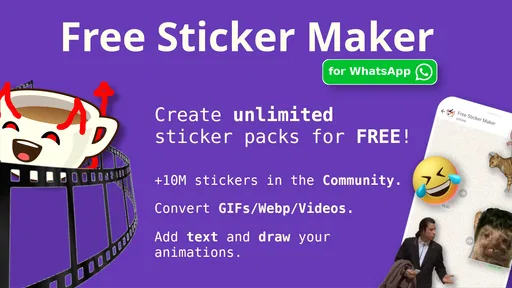
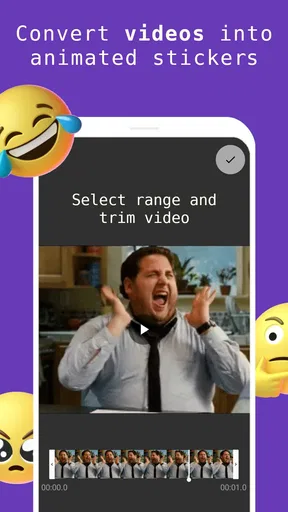
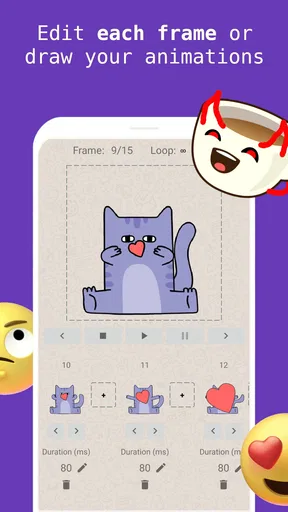
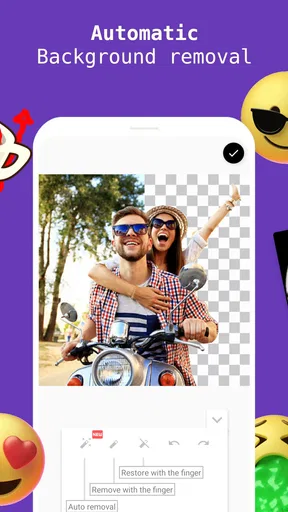
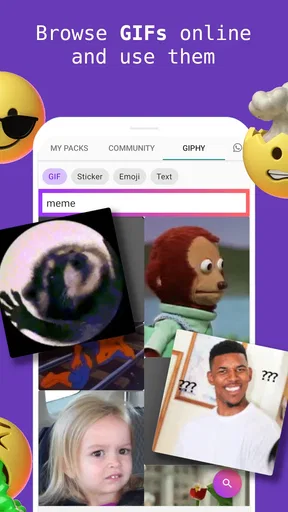
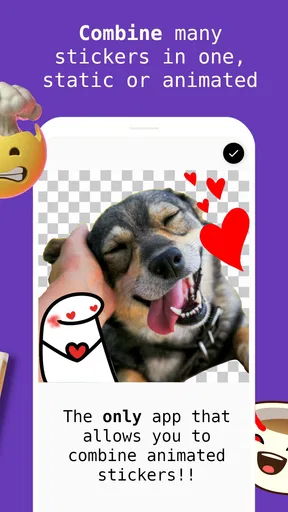
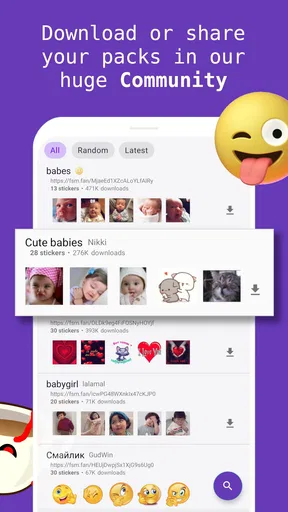
Our Review of Animated Sticker Maker (FSM)
 Analysis by Appyee
If you have ever wanted to turn a funny photo, a reaction image, or a short clip into something you can send in WhatsApp, Animated Sticker Maker (FSM) is an approachable place to begin. I found it much less intimidating than a full image-editing app because the goal is narrow: prepare your own sticker packs, including animated stickers, without first learning a complicated design workflow.
The app comes from Memento Apps, Inc and sits in the Art & Design category, although its real appeal is social rather than purely artistic. It is free to install, aimed at Teen users, and supported by optional in-app purchases priced from $0.99 to $2.99 per item. Its store summary focuses on static and animated WhatsApp stickers, but my experience is that the useful part is the small creative process around each sticker: choosing a good source, cutting it down, making the subject readable, and organizing the result into a pack that people will actually use.
What the first session feels like
The app is best understood as a practical sticker workshop rather than a general drawing studio. You are not opening it to paint a detailed illustration from a blank canvas. You are opening it with an image, a reaction, or a short piece of motion in mind and trying to turn that material into a compact message.
That distinction matters. A sticker has to work at a small size, often in a busy chat, and usually needs to communicate its emotion immediately. A beautiful image can make a poor sticker if the subject is too small, the background is confusing, or the expression is not obvious. I quickly learned that selecting the right source matters more than adding lots of decoration.
The free entry point makes experimenting comfortable. You can test the idea with a few personal images before deciding whether the optional purchases are worthwhile for your habits. The app has attracted a 4.6 average from around 209 thousand ratings and has passed 10 million installs, which gives it a reassuring level of adoption without changing the more important question: whether its workflow matches the way you want to create and share.
One thing I would set expectations about is the difference between “animated” and “effortless.” Motion adds personality, but it also makes timing, cropping, and readability more important. A moving sticker that looks amusing in the editor may feel too quick, too subtle, or visually messy once it is sent in a conversation. Static stickers are the easier starting point, and they are useful for learning the app’s basic rhythm.
Choosing material that will survive sticker size
For a first attempt, I recommend using a close-up photo with one obvious subject and a simple background. A face, a hand gesture, or a clearly framed object usually works better than a group photo. If you begin with a crowded image, you may spend most of your time trying to rescue details that disappear when the sticker is viewed inside WhatsApp.
For animation, choose a short moment with a clear beginning and end. A wave, a laugh, a head turn, or a simple reaction is easier to understand than a long scene containing several actions. This is one of the app’s less obvious lessons: animation does not automatically make a sticker better. It works when the movement reinforces the message.
Getting through the initial setup
After installing the app, I would not begin by collecting dozens of images. Start with one photo and one idea for how you want to use it. Think of a real chat situation, such as replying to a friend who has canceled plans, celebrating good news, or acknowledging a familiar joke. That context helps you judge whether the finished sticker is readable and genuinely useful.
The first setup is mainly about understanding the creation flow and preparing a pack rather than perfecting every visual detail. Keep the pack focused. A small group built around one person, one pet, or one recurring reaction is easier to browse than a random collection of unrelated images.
Pack organization becomes surprisingly important after the novelty wears off. If you make several packs, give each one a clear purpose in your own mind. For example, one could be for everyday reactions, another for family photos, and another for animated responses. This is more useful than making a single giant pack where the sticker you want is difficult to find.
My best beginner tip is to design for recognition before decoration. If the subject is not clear in the preview, adding text, effects, or extra visual elements will rarely fix the underlying problem. Crop first, inspect the small result, and only then decide whether the sticker needs anything else.
Your first meaningful success
The most reassuring way to learn Animated Sticker Maker is to aim for one finished static sticker before trying motion. Pick a photo with a strong expression, remove or reduce distractions as far as the editing tools allow, and check the edges carefully. The goal is not a professional graphic; it is a clean, recognizable reaction that you would genuinely send.
Once the image looks right, place it in a small pack and move through the sharing process into WhatsApp. Seeing the sticker inside an actual chat is more informative than judging it only on the editing screen. You may notice that a detail you liked on a large preview is invisible at message size, or that the crop leaves too much empty space around the subject.
This test also answers a practical question many first-time users have: will the sticker be available where I want it? The app is built around WhatsApp sticker use, so the meaningful finish line is not merely saving an image. It is successfully getting the creation into your normal messaging workflow and finding it when you need it.
For the first animated attempt, use the same subject or idea as your successful static sticker. That gives you a useful comparison. If the static version communicates “I cannot believe this” clearly, a small movement such as a reaction or gesture can add energy without forcing you to invent a completely new design.
Making animation readable instead of distracting
Animated stickers need restraint. Fast changes can be funny, but they can also make the subject hard to follow. I prefer motion that repeats a recognizable action rather than a sequence packed with tiny changes. If the viewer has to study the sticker to understand what happened, it is probably doing too much for a chat message.
Another practical trade-off is file complexity. Animated content naturally demands more attention than a still image, and a pack full of motion can become tiring to browse. I would mix animated reactions with static ones instead of making every sticker move. That gives you a quick response for ordinary conversations and a more expressive option when the moment deserves it.
Where new users usually get confused
The first common confusion is treating the app like a conventional photo editor. Its purpose is not to preserve every part of the original image. Cropping, simplifying, and reducing visual clutter are part of the design process. If you try to keep the entire frame, the final sticker may technically contain everything but communicate almost nothing.
The second is expecting every source image to make a good sticker. A blurry photo, a distant subject, or a dark scene can be difficult to improve. I would rather abandon a weak source quickly than spend time adding details to compensate for poor framing. Good sticker-making starts before the editor opens.
The third concerns the difference between creating a sticker and arranging a pack. A single sticker can be successful on its own, but a pack is what makes the result convenient in daily use. Consider the order and theme of the collection. If the first few stickers cover common reactions, the pack becomes useful sooner than one filled with nearly identical poses.
There is also a social question: not every personal image should become a shared sticker. Before turning a friend’s photo, a child’s image, or somebody else’s artwork into a pack, think about whether the people involved would be comfortable with it being used in chats. The app makes creation easy, but that does not remove the need for ordinary judgment about privacy and permission.
How the app compares with familiar alternatives
Compared with a general-purpose design app, this tool feels more direct. A larger design editor may offer finer control over layers, typography, color correction, and composition, but that flexibility can slow down a simple task. If your goal is a quick WhatsApp reaction, Animated Sticker Maker keeps your attention on the sticker rather than on a broad canvas.
On the other hand, someone who wants polished brand graphics, carefully matched typography, or detailed illustration may outgrow it. A dedicated graphics editor is a better choice when exact control matters more than speed. I would also choose a broader animation tool for a project that needs complex timing, multiple scenes, or a more controlled visual style.
Compared with downloading ready-made sticker packs, this app trades convenience for personality. Prebuilt packs are faster when you just want more choices immediately. Creating your own is better when the joke depends on a particular face, pet, phrase, or shared memory that generic packs cannot provide.
The strongest middle ground is using it selectively: make a few personal stickers for reactions that your usual packs do not cover, then keep downloaded options for ordinary situations. That avoids turning sticker creation into a chore while still giving your conversations something distinctive.
Small workflow improvements that make a difference
One useful habit is to review the sticker at the smallest practical preview before finalizing it. At full editing size, edges and facial details can look excellent. At chat size, contrast and silhouette matter more. If the subject blends into the background, simplify the image rather than assuming the recipient will zoom in mentally.
Another is to create variations with different emotional intensity. A neutral smile, an exaggerated reaction, and a deliberately silly version can serve different conversations even when they come from the same source. This is more valuable than making several copies that differ only slightly in crop.
Text deserves caution. Words can make a sticker immediately understandable, but they also make it less flexible across situations. A specific phrase may be perfect for one inside joke and useless elsewhere. I generally prefer a clear expression for everyday packs and reserve text for messages that truly need it.
For animated material, preview the loop more than once before sharing. The first viewing tells you whether the movement is visible; repeated viewing tells you whether it becomes annoying. That simple check helps separate a charming reaction from an animation that demands too much attention every time it appears.
Who will enjoy it, and who should skip it
I think the app is a good fit for someone who wants personal WhatsApp stickers without learning a full design program. It is especially appealing if you regularly share reactions with a close group and have a folder of photos or short clips that already carry meaning for you.
It also suits beginners who want a quick creative result. The first successful sticker can happen without building an elaborate project, and the free starting point lowers the risk of trying it. The Teen content rating is worth keeping in mind for families choosing apps for younger users; adults should make their own judgment about whether the app fits the intended user.
I would skip it if your main need is advanced illustration, professional asset preparation, or detailed animation control. I would also skip it if you never use WhatsApp, because the app’s central value is tied to bringing custom stickers into that messaging environment. In that situation, a tool designed around your preferred platform would make more sense.
What the optional purchases mean for the decision
The app is free, so I would begin without paying and judge how often I actually create stickers. Optional purchases range from $0.99 to $2.99 per item. That makes experimentation relatively straightforward, but I would still avoid buying anything until I understand which part of the workflow I use most.
If you only want a handful of personal reactions, the free experience may be enough for your needs. If you are building several themed packs and find yourself using the app regularly, an optional item may feel more reasonable, provided it addresses a limitation you have personally encountered. The important point is not to treat every available extra as necessary for a good first result.
My recommendation after using the full workflow
Animated Sticker Maker (FSM) succeeds because it focuses on a very specific creative job and makes that job approachable. I like that it encourages a result you can use immediately rather than leaving you with an image that still needs another complicated export process. Its biggest strength is the bridge between a personal photo or clip and a message that feels genuinely yours.
It is not a replacement for a serious design suite, and animated stickers require more judgment than the short description might suggest. Source quality, cropping, pack organization, and restraint all affect the final experience. Those are not frustrating flaws so much as the practical realities of making small visual messages.
If I were recommending it to a friend, I would say: start with one clear static reaction, test it inside WhatsApp, then build a small themed pack around what worked. Move to animation only after you know the subject reads well at chat size. That path gives a first-time user a quick win while leaving room to develop a more personal sticker collection over time.
With a 4.6 average and more than 10 million installs, the app is clearly familiar to a large audience, but popularity is not the reason I would install it. I would choose it when I wanted custom reactions that ready-made packs could not provide, and I would keep my expectations focused on that job. For casual creators, that focus is exactly what makes the experience worthwhile.
Verdict
Strengths of Animated Sticker Maker (FSM)
- Create custom animated stickers from photos, videos, or GIFs.
- Simple editing tools make sticker creation accessible for beginners.
- Supports expressive stickers for chats and social messaging.
- Useful text and decoration options for personalizing designs.
- Sticker packs can make conversations more fun and distinctive.
Limitations of Animated Sticker Maker (FSM)
- Some advanced tools or assets may require in-app purchases.
- Export quality can vary depending on the original media resolution.
- Animated stickers may use more storage than standard static stickers.
- The interface can feel crowded when many editing options are displayed.
- Compatibility may vary across messaging apps and devices.
Similar Picks in This Category
View All
Canva: AI Photo & Video Editor
Canva4.8

PENUP – Drawing-sharing SNS
Samsung Electronics Co., Ltd.4.5

Crafto
Kutumb App4.6

Sketchbook
Sketchbook4.1

ibis Paint X
ibis inc.4.5

Adobe Express: AI Photo, Video
Adobe4.6
Frequently Asked Questions
What is Animated Sticker Maker (FSM), and what can I create with it?
Animated Sticker Maker (FSM) is a creative tool for making personalized animated stickers from images, videos, GIFs, or camera captures. You can usually crop subjects, remove or replace backgrounds, add text, emojis, drawings, and visual effects, then export the result for use in compatible messaging apps. It is designed for casual users who want to create expressive sticker packs without advanced editing experience.
Is Animated Sticker Maker (FSM) easy to use for beginners?
The app is generally approachable because its main tools are organized around a simple sticker-making workflow: choose media, edit the frame or animation, add decorative elements, and save or share the result. Beginners may still need a little practice with precise cropping, timing, and background removal. The final experience can also depend on the device, operating system, and the messaging platform used for importing stickers.
Which messaging apps are compatible with stickers made in Animated Sticker Maker (FSM)?
Compatibility depends on the version of Animated Sticker Maker (FSM), your operating system, and the messaging services supported by the app. Sticker packs may be prepared for popular platforms such as WhatsApp or other compatible messengers, but animated stickers can have specific format, size, duration, and file-count restrictions. Before creating a large pack, check the app’s export options and the destination messenger’s current requirements.
Does Animated Sticker Maker (FSM) require internet access or an account?
Basic editing may work without a constant internet connection when your media is already stored on the device. However, internet access can be necessary for downloading resources, displaying advertisements, using cloud-based features, or sharing packs through online services. Whether an account is required varies by the app version and selected feature. Review the permissions and sign-in prompts during setup before granting access.
Is Animated Sticker Maker (FSM) free, and are there any limitations?
Animated Sticker Maker (FSM) may be available as a free download, but free use can include advertisements, optional purchases, premium effects, export restrictions, or limits on the number of stickers in a pack. Some advanced tools may require an upgrade, while certain messaging platforms impose their own technical limitations. Check the current store listing for pricing, subscriptions, supported devices, and in-app purchase details before downloading.
